Help center / Getting started
Uploading to the Asset Vault
Upload footage, audio, LUTs and graphics, resume interrupted uploads, and understand processing and encryption.
The Asset Vault holds every file in the workspace. Uploads go straight to storage in parts, so large files are fine and an interrupted upload can continue where it stopped. After upload, each file is processed and encrypted before you can edit with it.
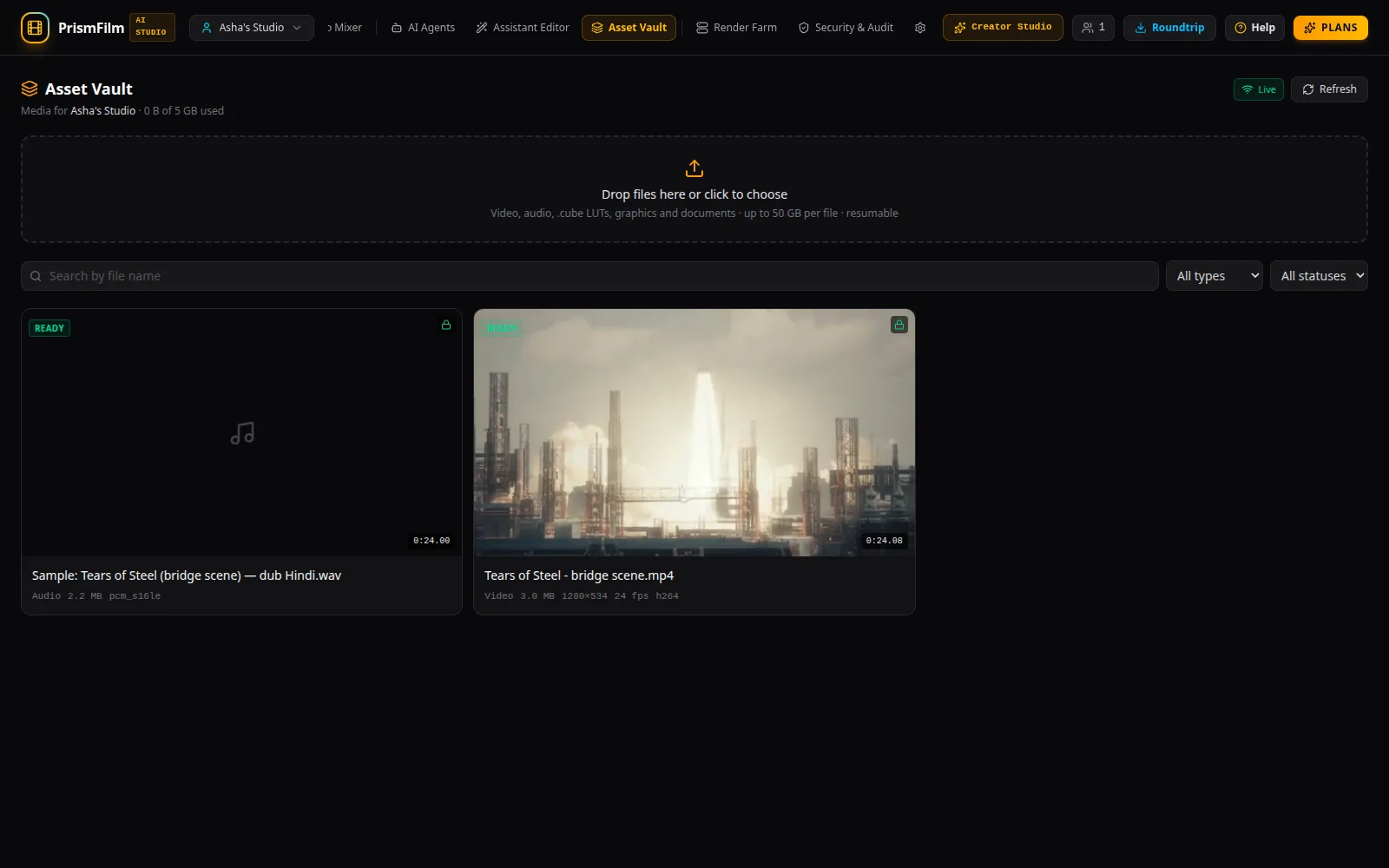
Upload files
- Open Asset Vault.
- Drop files on Drop files here or click to choose, or click it to pick files. Video, audio,
.cubeLUTs, graphics and documents are accepted, up to 50 GB per file. - In the Upload queue, check each file's Asset type and choose Upload, or Upload all.
- Watch the status: Preparing…, Uploading with progress, Verifying parts…, then Uploaded — processing started.
- You can Pause and Resume an upload, or Cancel it. Clear finished tidies the queue.
Keep the tab open while files upload; the browser warns you if you try to close it.
Resume an interrupted upload
If the connection drops or you close the tab, the file appears under Interrupted uploads. Select the same file again in the upload area: only the missing parts are sent (An interrupted upload of this file was found; only the missing parts will be sent.). Choose Discard to give up on it.
Processing
Each file then goes through a processing job:
- Probe: codec, resolution, frame rate, colour metadata, audio layout and timecode are read.
- Thumbnails and waveform: a poster frame, a 10-frame filmstrip and audio waveform peaks.
- Proxy: a smaller copy (up to 720p) for smooth playback in the browser. Edits and exports always use the original.
- Encryption: the original and everything made from it are encrypted at rest with your workspace's key.
The card shows processing until this finishes, then ready. Only ready files can go on the timeline.
File details
Click a card to open its details: play the proxy, scrub the filmstrip or waveform, see the encryption status and the probed metadata, Download original, follow the Processing jobs with their logs, and Delete.
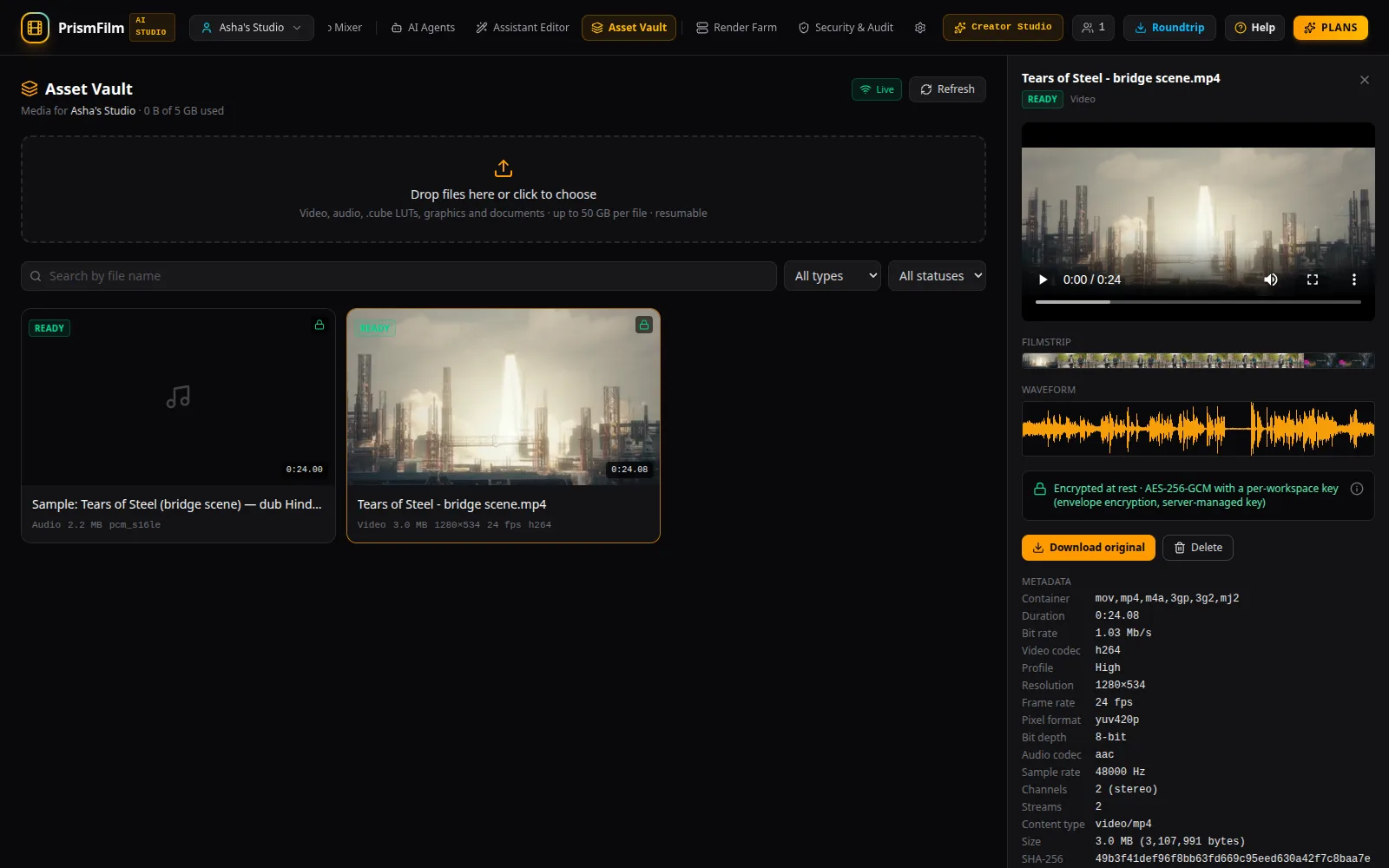
Find files
Use Search by file name, Filter by type and Filter by status.
Common problems
- "…Delete assets you no longer need or raise the workspace plan." The upload would pass your plan's storage. Delete files or change plan under Plans.
- "Uploads are unavailable on this server…" Storage isn't configured on this server; an administrator needs to set it up.
- "Network error while sending to storage". The connection was lost or blocked. Choose Retry or select the file again to resume.
- "Processing failed: … Retry the job below." Open the file's details and use Retry on the failed job.
- "Waiting for a worker". The processing workers are not running; the job starts when one is back.
- "This browser cannot decode the proxy (H.264/AAC in MP4)…" Use a browser with H.264 support (Chrome, Edge, Safari) or download the original.
- Delete is greyed out. Cancel the processing job first ("Cancel the processing job before deleting").
- Reviewers can view and play files but not upload or delete.