Help center / Captions, languages and Shorts
Make a Short
Turn a range of your edit into a 9:16 Short with vertical reframing, captions and platform safe zones, without touching the original.
Make a Short copies a range of your timeline into a new vertical sequence. Your original edit is never changed; you can make as many Shorts as you like.
Make one
- In Timeline & Grade, select the clips you want, or park the playhead where the Short should start.
- Choose Make a Short at the top.
- Adjust From (s) and To (s). A Short is 1 to 180 seconds.
- Create and open. The Short opens in Creator Studio for review.
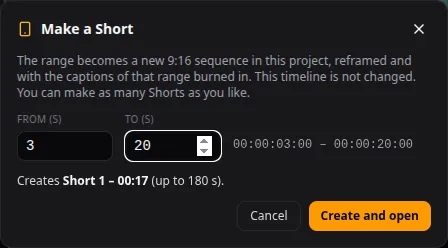
The Short is a sequence of the same project, listed under it as "↳ Short 1 – 00:45". It carries the clips, markers and captions of that range, a 9:16 reframe and the Shorts render preset.
You can also ask the edit assistant in AI edits: make a 45s Short from the best moment. It measures audio activity, level and speech to find a window and opens the new Short.
Reframe to 9:16
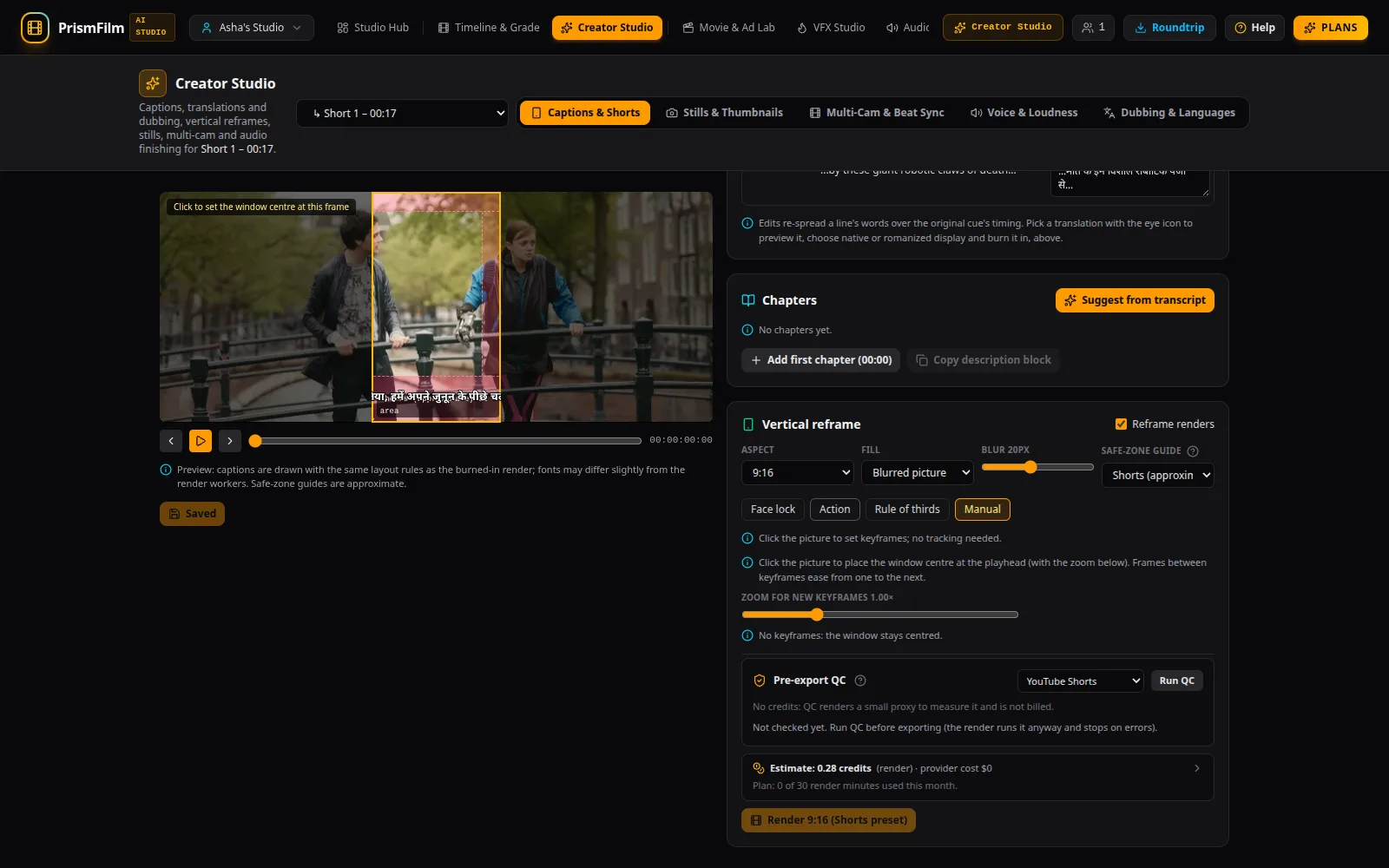
In Creator Studio → Captions & Shorts, the Vertical reframe card controls the crop:
- Reframe renders turns the reframe on.
- Choose the aspect (9:16, 4:5, 1:1) and what fills the edges (Blurred picture, Mirror, Black).
- Choose a mode: Face lock, Action or Rule of thirds follow the subject (with a GPU worker online, use Track faces / Track subjects), or Manual: click the picture to set keyframes.
Safe zones
The Safe-zone guide shades the parts of the picture covered by the platform's buttons and captions: Shorts, TikTok or Reels. Keep faces and burned-in captions out of the shaded areas. The guides are approximations of each platform's layout, not official specifications. The pre-export QC warns when captions fall under them.
Export the Short
Use Render 9:16 (Shorts preset) in the reframe card, or the Render Farm. QC runs first.
Common problems
- Make a Short is greyed out. The timeline is empty.
- "A Short can be at most 180 s…" / "A Short must be at least 1 s". Change From and To.
- "Face/subject tracking needs the GPU worker, which is offline." Use Manual and click the picture to place the crop.
- The Studio viewer shows the full frame. The 9:16 crop and captions are previewed in Creator Studio and applied by the render.
- "Save first — renders use the saved captions and reframe." Press Save changes before rendering.