Help center / Editing and colour
Sound effects
Add whooshes, clicks, pops, risers and ambience from the built-in public-domain library, shape them with volume, fades and pitch, and let smart placement suggest where they go.
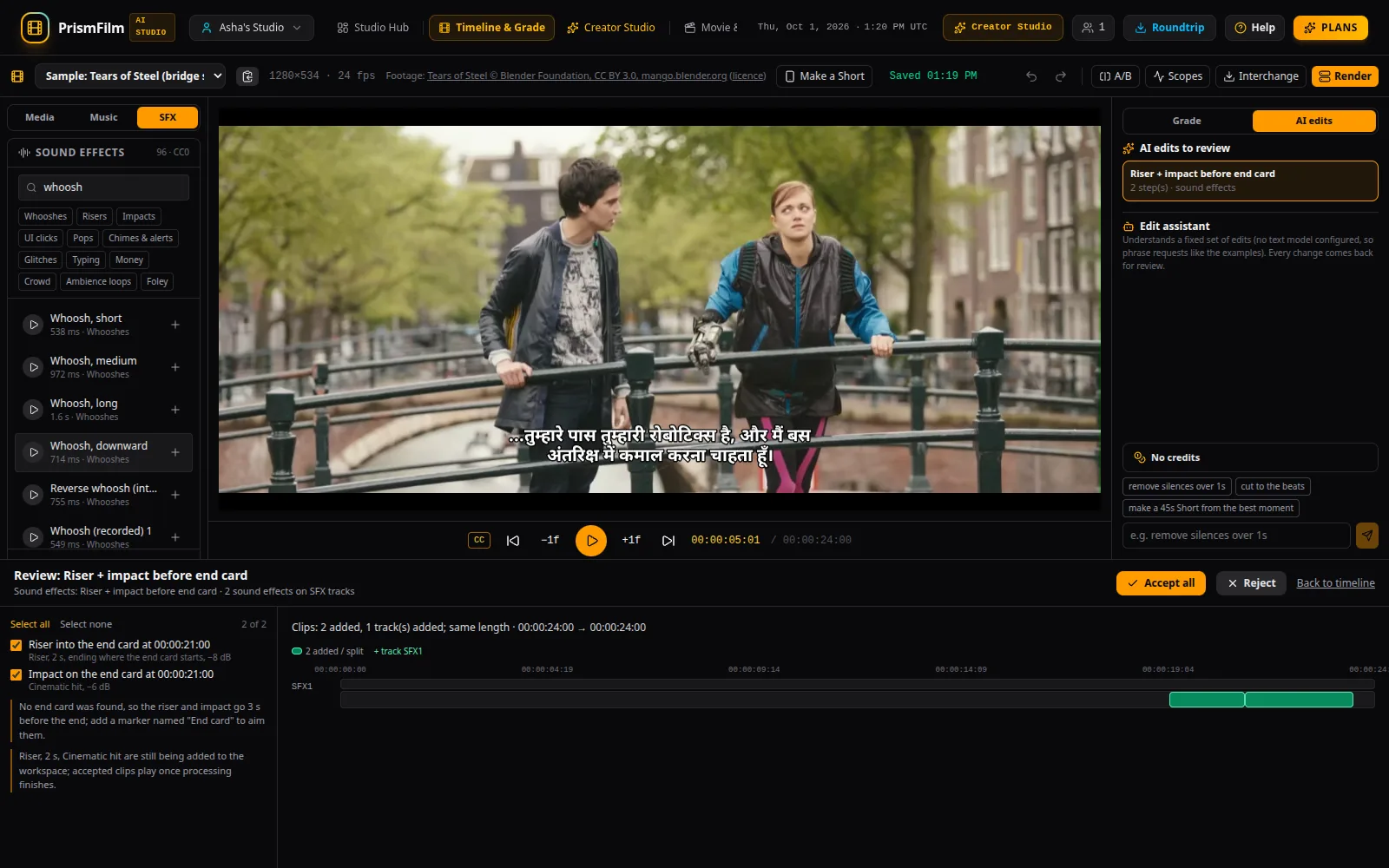
Studio → SFX (next to Media and Music, left of the viewer) is a library of built-in effects for ads and creator videos: whooshes and swooshes, UI clicks, pops, chimes and alerts, risers, impacts, glitches, typing, a cash register, crowd cheers and applause, foley, and 12-second ambience loops.
Where the sounds come from
Every built-in effect is public domain: released under CC0 by its author, or made for PrismFilm and dedicated to the public domain. You can use them in commercial work without paying or crediting anyone. The sources are:
- Kenney's CC0 audio packs
- CC0 recordings from BigSoundBank
- whooshes, risers and impacts synthesized for PrismFilm
Each file's source and license are listed on the credits page.
Find and preview
- Type in Search (for example whoosh, click, riser, cash register) or pick a category. Every word must match the effect's name or one of its tags.
- Press ▶ to preview an effect. Press it again to stop.
Put an effect on the timeline
- Drag an effect onto a track at the moment you want it, or press + to add it at the playhead.
- A dropped effect goes on the audio track you drop it on if that track has room there. Otherwise it goes on an SFX track, which is created when needed. SFX tracks are ordinary audio tracks: they mute, solo and lock like the others, and their clips go through the mixer, ducking and loudness normalization and render the same way.
- The first time you use an effect, it is added to your workspace's media (named SFX · …). After that it is reused.
Volume, fades and pitch
Select one audio clip on the timeline. The bottom of the Sound effects panel shows its controls:
- Volume: the clip's gain, from −30 to +12 dB.
- Fade in and Fade out: linear fades, the same in the preview and the render. A razor cut keeps the fade-in on the first half and the fade-out on the second.
- Pitch: −12 to +12 semitones, like a sampler. Higher pitch plays faster and makes the clip shorter; lower pitch makes it longer. If the longer clip would run into the next one on its track, the change is refused.
- Trim: drag the clip's edges on the timeline.
A drag on a slider is one undo step.
Smart placement
The three buttons under Smart placement suggest effects. Each suggestion opens as a reviewable batch in AI edits (see Reviewing AI edits): tick the steps you want, see the difference, then accept or reject. Nothing changes before you accept.
- Add SFX to transitions: a whoosh centred on every cut between video clips, in turn from three different whooshes. Seamless edits are skipped: where a clip was only split and the same shot carries on (for example to animate a zoom), there is no cut to cover, and the batch lists the ones it skipped.
- Add clicks to screen recording: a mouse click at every click in a screen recording made with our capture tool, which records when each click happened. The tool saves the click times in a file next to the video and sends them when it uploads the recording, right away or later. A recording uploaded through the Asset Vault arrives without its click times. Other videos have no click times, so nothing is placed on them.
- Riser + impact before end card: a riser that ends where the end card starts, and an impact on it. The end card is a marker named End card if there is one, otherwise the last video clip if it starts in the last 8 seconds, otherwise 3 seconds before the end. The batch says which it used.
Accept one suggestion, then ask for the next: each suggestion places its effects around what is already on the timeline, adding a second SFX track when the first one is busy.
Describe a sound (AI)
When a sound-generation service is configured, Describe a sound turns a sentence into an effect of 1–10 seconds. Estimate shows the cost first, and Generate stays disabled until you have seen it. The effect is added to your media and placed at the playhead. Without a configured service the section says it is off; the built-in library always works.
Common problems
- "None of the video clips is a screen recording with click times": click sounds need a recording made with our capture tool. For other recordings, add Mouse click by hand where you need it.
- "No cuts between video clips were found": the timeline has one continuous video clip. Split it (Razor) where you want a transition.
- "… would overlap …" after a pitch change: lowering the pitch made the clip longer than the gap after it. Move the next clip, or trim this one first.