Help center / Account and workspace
Credits, budgets and billing
How credits are counted, how to see where they went, set monthly budgets with alerts, change plan and get GST invoices.
PrismFilm bills in credits. One credit is one metered minute: a minute of rendered output, or a minute of media processed or generated by an AI task. Every job shows an estimate before you start it, and your plan's monthly credits reset on the 1st (UTC). Each plan's credits, storage and price are on the pricing page.
What uses credits
- Render credits: minutes of video exported (including Shorts and language versions).
- AI credits: minutes of media transcribed, separated into stems, analysed by speaker detection, and so on; dubbing counts one credit per minute of speech it generates.
- Text-model features (the edit assistant, agents, chapters, selects ratings) use AI credits in proportion to what the model call costs, when a text price is set on the server.
- Editing, grading, previewing and pre-export QC don't use credits.
Estimates before every job
Next to every button that starts paid work you see Estimate: N credits and the provider cost. Open it for how it was worked out, your budgets and how much of the plan is used. It is an estimate: the actual run is metered. If a job would go over a hard budget or the plan's quota, the button is disabled and says why.
See where credits went
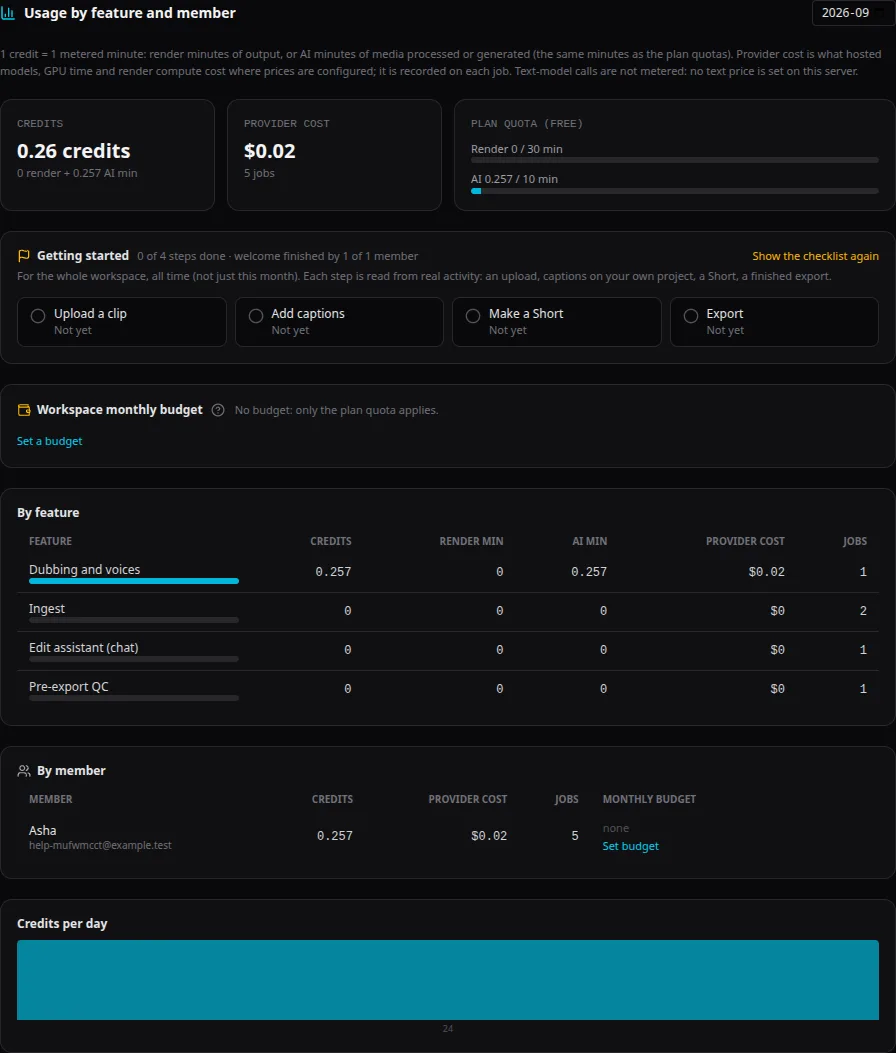
Settings & RBAC → Usage & Budgets shows, for any month:
- credits, provider cost and the plan's quota;
- By feature and By member (members who aren't owners see their own row and the workspace totals);
- Credits per day;
- budget alerts sent this month.
Budgets and alerts
Owners can cap monthly spending for the whole workspace and for each member:
- In Workspace monthly budget, choose Set a budget (or Change budget); for a member, Set budget in their row.
- Enter a cap in credits, in US dollars of provider cost, or both.
- Tick block over cap to refuse jobs that would pass it (a hard budget). Leave it off to get alerts only.
- Save.
Alerts go out at 80% and 100% of a budget, by email to the owners and the member, and are shown on the dashboard. Queued jobs count toward the budget from the moment they're queued, so starting several at once can't slip past it.
Plans and billing
Plans in the top bar opens Plans & billing: this month's storage, render and AI use, the plans, and your invoices.
- Owners choose Subscribe to … on a plan and pay with Razorpay. The plan changes when Razorpay confirms the charge, usually within a minute.
- Fill in Billing details (printed on GST invoices): your name, email, state (place of supply), address and, for business invoices, your GSTIN.
- Every successful charge gets a GST tax invoice under Invoices; choose View to open or print it.
- Cancel subscription keeps the plan until the end of the period you paid for, then moves the workspace to Free. Nothing is deleted.
Prices are in rupees; 18% GST is added at checkout and shown on the invoice. See also Refund & Cancellation.
Common problems
- "This would go over a monthly budget, so it will be refused." Ask an owner to raise the budget, or wait until next month.
- "This would go over the plan's monthly quota…" Upgrade the plan or wait for the 1st.
- "Only workspace owners can change the plan". Ask an owner.
- "Online payment is unavailable…" Razorpay isn't set up on this server; a platform administrator can still assign plans.
- "Payment authorised. Your plan changes as soon as Razorpay confirms the charge…" Wait a minute and reopen Plans.