Help center / Getting started
Getting started
Create your account, pick your languages and platform, and make your first edit with the bundled sample project.
PrismFilm AI Studio is a video editor that runs in your browser. You edit on a timeline, grade colour, add captions in Indian languages, dub, make Shorts and export, all in one workspace. Heavy work (processing uploads, rendering, transcription) runs on our servers, so a laptop is enough.
Create your account
- Go to the home page and choose Start free, or open the app directly.
- Enter your name, email and a password of at least 10 characters, then Create account.
- You get a personal workspace on the Free plan. You can create team workspaces later.
The welcome
The first time you sign in, three short steps set PrismFilm up for you:
- Which languages do you create in? Pick any of Hindi, Telugu, Tamil, Kannada, Malayalam, Bengali, Marathi and English. These are preselected when you translate captions.
- Where do you mainly publish? YouTube, YouTube Shorts or Instagram Reels. This sets the frame size, export preset and loudness target of your first project.
- Start your first project. Open the sample project, or create an empty one sized for your platform.
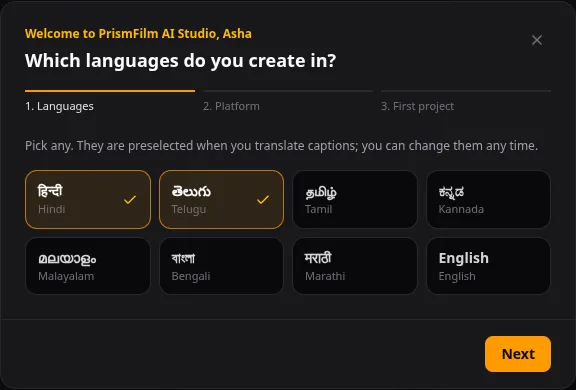
You can skip the welcome at any step with ✕ or I'll do this later.
Try the sample project
The sample is a 24-second scene from Tears of Steel (CC BY 3.0, Blender Foundation). It is already transcribed, with English subtitles and a Hindi translation as caption tracks, and its two speakers are set up for dubbing. Use it to try grading, captions, Make a Short and the dubbing estimate before you upload anything.
Open it from the welcome, from any empty view (Open the sample project), or from the getting-started checklist.
The getting-started checklist
A small card in the corner lists four steps: Upload a clip, Add captions, Make a Short and Export. Each tick comes from something you actually did in the workspace; the sample on its own ticks nothing. Close it with ✕; you can bring it back from Settings & RBAC → Usage & Budgets → Show the checklist again.
Tours and help
Each main view has a short guided tour that starts the first time you open it. Close it at any time with ✕ or Esc. To see it again, or to open the guide for the view you are in, use Help in the top bar.
Next: a tour of the Studio Hub.
Common problems
- "Password must be at least 10 characters". Choose a longer password.
- "An account with this email already exists". Sign in instead, or use Forgot password? on the sign-in screen.
- The sample project shows "Proxy … is not ready yet". The sample is processed like any upload. Wait a few seconds; it becomes playable when processing finishes.
- Open the sample project is missing. Reviewers can't create projects. Ask a workspace owner to make you an editor.