Help center / Captions, languages and Shorts
Captions and translations
Transcribe speech in Indian languages, edit and style captions in native script or romanized, translate them, and export SRT or VTT.
Captions live in Creator Studio → Captions & Shorts. PrismFilm transcribes the dialogue, follows speakers who switch between Hindi and English mid-sentence, shapes Indian scripts correctly in the preview and in the burned-in export, and translates caption tracks line by line.
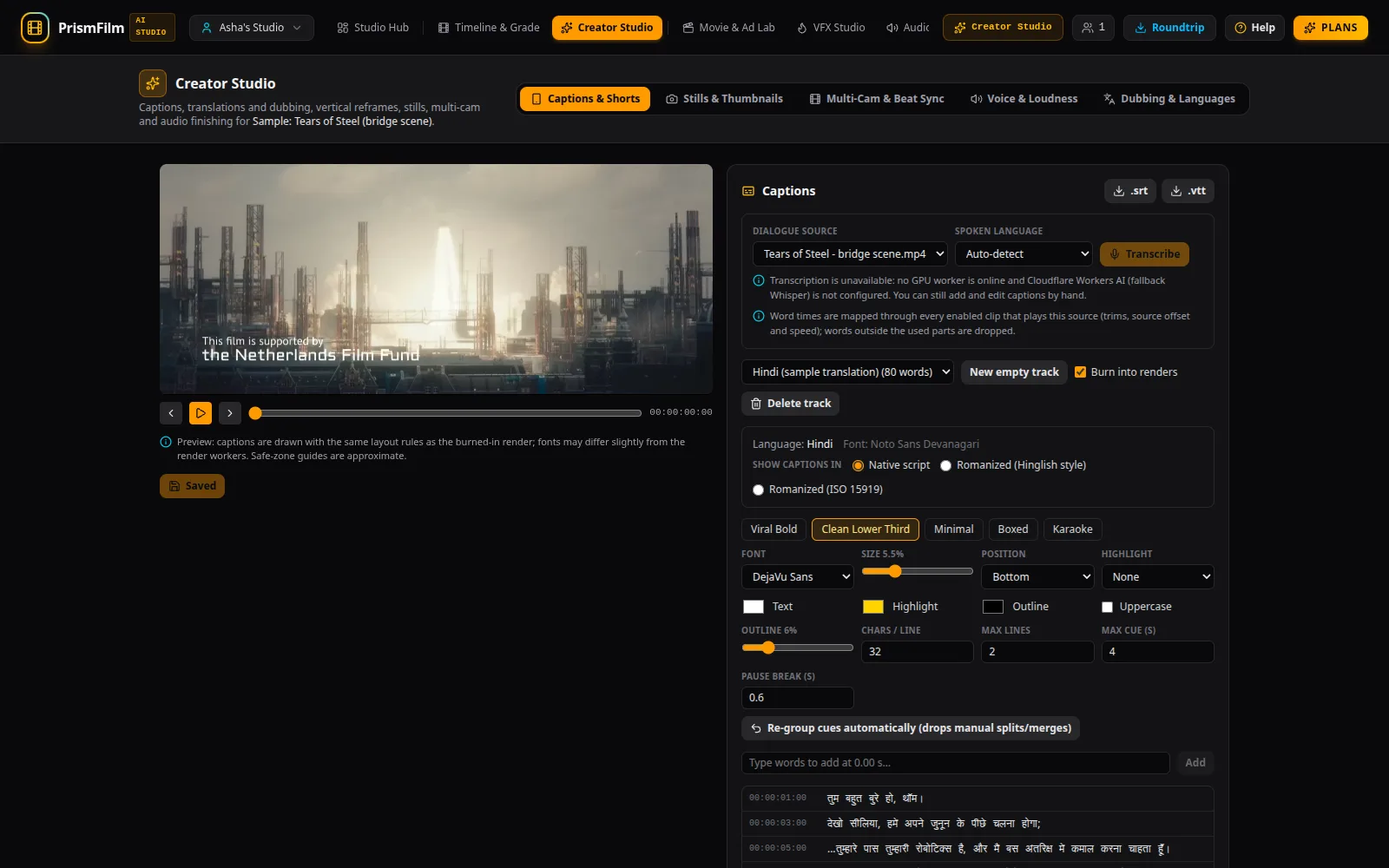
Transcribe
- Open the project in Creator Studio (it's the project open in Timeline & Grade).
- In the Captions card, choose the Dialogue source: a clip with the speech on the timeline.
- Set Spoken language, or leave Auto-detect. Setting it helps with short clips.
- Check the cost estimate, then Transcribe. Words are placed on the timeline and grouped into cues.
Transcription runs on the GPU worker, or on a hosted speech model when no worker is online. If neither is available you can still type captions by hand.
Native script or romanized
The language bar shows the detected language and flags Code-switched tracks (two languages each with at least a tenth of the words). Under Show captions in choose:
- Native script: देवनागरी, తెలుగు, தமிழ் and so on.
- Romanized (Hinglish style): casual Latin spelling, the way people type.
- Romanized (ISO 15919): the scholarly transliteration.
The choice applies to the preview, the burn-in and SRT/VTT files.
Edit words and cues
- Click a word in the cue list to edit its text, start and end, or use Split cue here, Merge with next, Cue −1f / Cue +1f and Delete word.
- Type in Type words to add at … s… and Add to insert words at the playhead.
- Re-group cues automatically rebuilds the cues from the style's limits (it drops manual splits and merges).
- Press Save changes. Unsaved edits are kept if you switch tabs.
Style
Pick a preset (Viral Bold, Clean Lower Third, Minimal, Boxed, Karaoke), then fine-tune the font, size, position, highlight (Active word pop or Karaoke fill), colours, outline and line limits. Tick Burn into renders on the track you want in the picture; only one track can be burned in.
Export SRT or VTT
Use .srt or .vtt in the Captions card header. The file uses the track's display script.
Translate captions
- Save the captions first.
- In the Translations card choose the Source track and the Register: Spoken (for dubbing), Formal, or Code-mixed (keep English words).
- Tick the languages under Translate into. The languages you chose in the welcome are ticked for you.
- Estimate cost, then Translate N lines × M.
- Each translation appears as a column next to the source, one row per cue. Edit any cell; the words are spread over the original cue's timing.
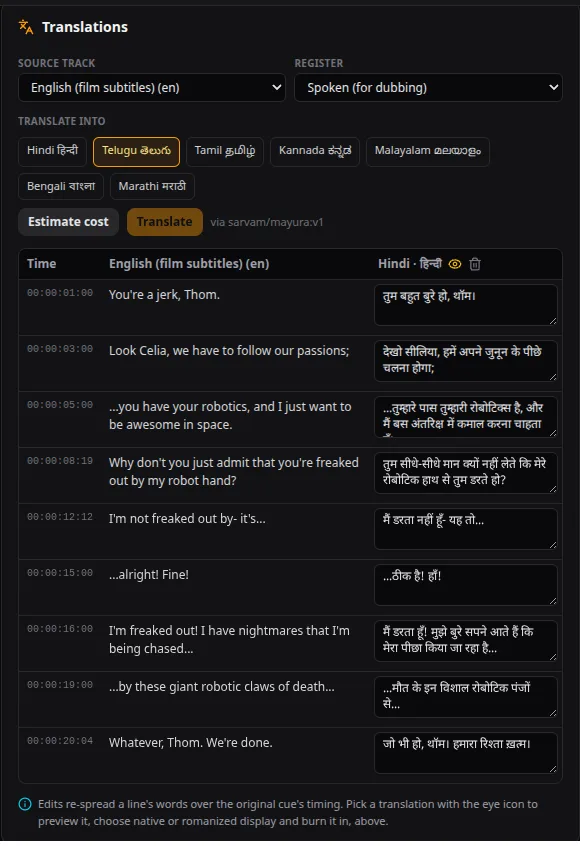
Machine translation is a draft: read it before you publish or dub it. Each translation is its own caption track, so you can style it, burn it in or export it like any other.
Chapters
The Chapters card suggests chapters from the saved transcript (Suggest from transcript; with a text model if one is configured, otherwise a simple method labelled as such). Edit them and Copy description block for your video description.
Common problems
- "Transcription is unavailable: no GPU worker is online and Cloudflare Workers AI (fallback Whisper) is not configured." The server has no speech model right now. Add captions by hand, or try later.
- "The timeline is empty. Add clips in Studio first." Put the clip with the speech on the timeline.
- "The transcript has no words inside the parts of this source used on the timeline." The used part of the clip has no speech, or it is trimmed away.
- "Save the captions first: translation reads the saved track." Press Save changes.
- "Translation is unavailable: …" No translation provider is configured on this server.
- "Some lines came back empty and are marked below". Fill the cells marked Missing translation by hand, or translate again.
- Conjuncts look broken in another app. PrismFilm shapes Indian scripts correctly in its own preview and burn-in; players that show SRT files use their own fonts.