Help center / AI assistance
Assistant Editor and hand-off to Resolve or Premiere
Ingest a shoot, sync cameras, transcribe, get rated selects and a rough cut, then hand everything to DaVinci Resolve or Premiere Pro.
The Assistant Editor does the prep work of an assistant editor on a whole shoot, then hands the result to the editor you finish in: DaVinci Resolve, Final Cut Pro or Premiere Pro.
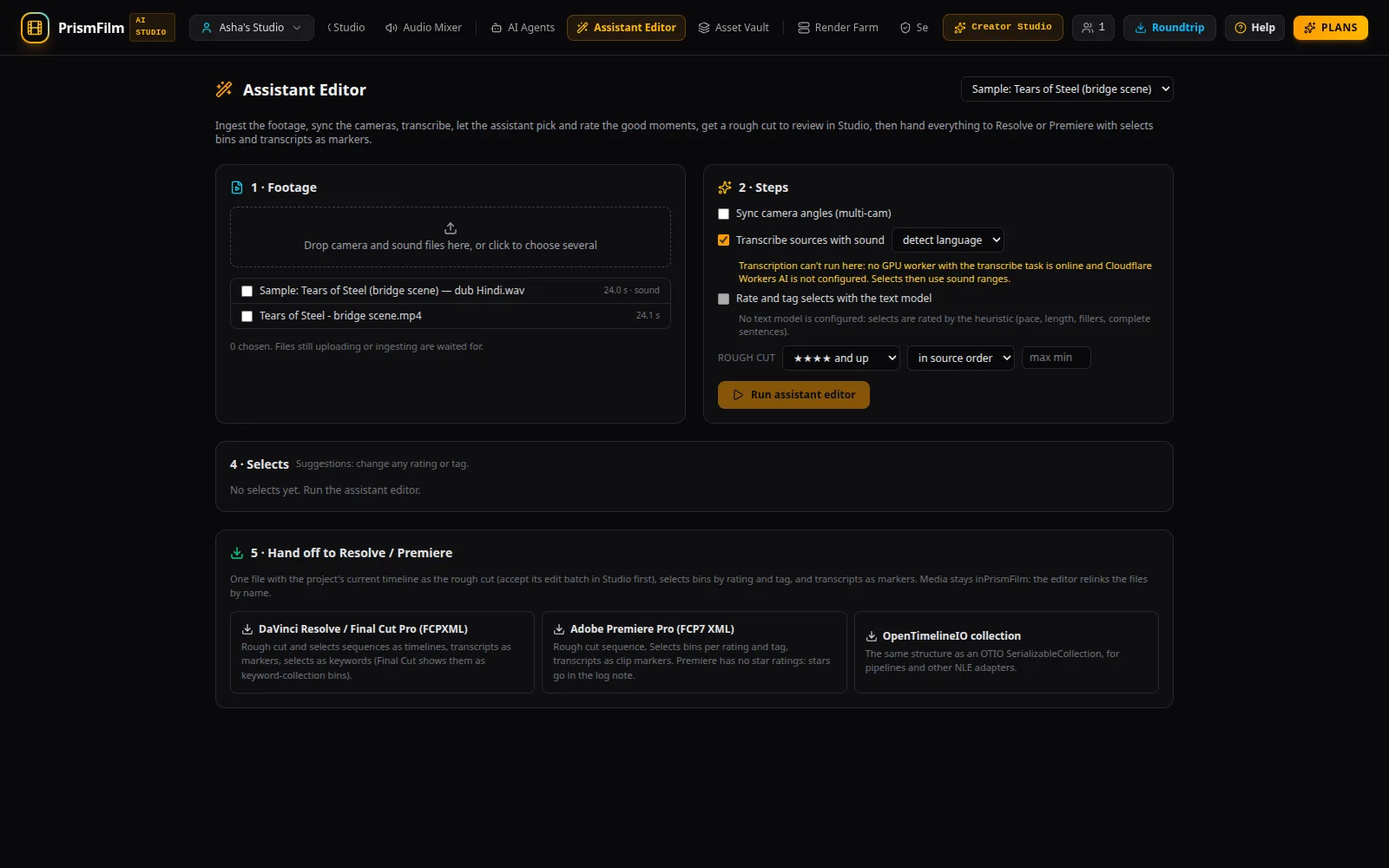
Run the assistant editor
- Choose the Project at the top.
- 1 · Footage: drop camera and sound files on Drop camera and sound files here, or click to choose several, then tick the sources to use.
- 2 · Steps: choose what to do:
- Sync camera angles (multi-cam): pick the Reference angle and sync by sound, timecode, clap or slate.
- Transcribe sources with sound, with the language or detect language.
- Rate and tag selects with the text model (without a text model, selects are rated by measurable signals: pace, length, filler words, complete sentences).
- Rough cut: the minimum rating (e.g. ★★★★ and up), the order and a maximum length.
- Check the estimate and Run assistant editor.
- 3 · Run shows each step: Ingest, Multi-cam sync, Transcription, AI selects, Rough cut. When it finishes, Review the rough cut in Studio (AI edits panel) → opens it as a proposal to review.
Work with selects
4 · Selects lists the rated moments. Filter by At least stars or Tag, change a rating with the stars, edit tags, delete selects, and Save changes. Ratings are suggestions from measurable signals (and the text model, when configured), not predictions of views.
Hand off to Resolve or Premiere
In 5 · Hand off to Resolve / Premiere:
- DaVinci Resolve / Final Cut Pro (FCPXML): clips with transcript markers, selects as keyword ranges with star ratings, a Selects folder, the rough cut and a string-out per tag.
- Adobe Premiere Pro (FCP7 XML): the rough cut, bins for star ratings and tags with each select as a marked clip, and transcript markers. Premiere has no star ratings, so they travel as text in the log note.
- OpenTimelineIO collection: for other tools.
Import the downloaded file in your editor and relink the media to your local copies.
NLE interchange
For a single timeline, use Roundtrip in the top bar (NLE Interchange):
- Export the open project as OpenTimelineIO, FCPXML 1.10, CMX 3600 EDL (one video track, grades as ASC CDL) or Advanced Authoring Format (AAF). The Carries and Limits panels say what travels, and the interchange report lists what was dropped or changed.
- Import an
.otio,.fcpxml,.edlor.aafinto A new project or to Replace the open project's timeline.
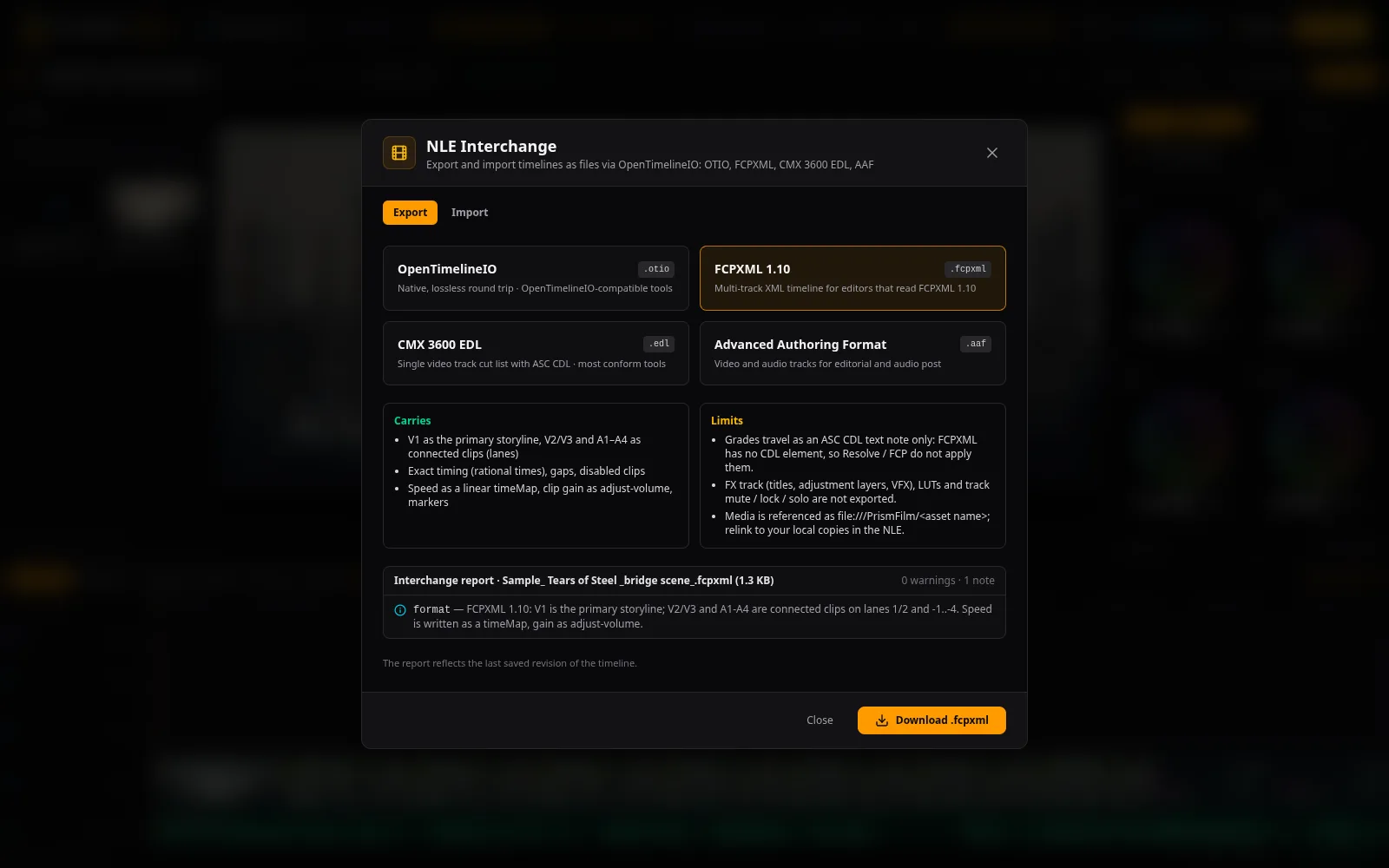
Transitions import as cuts, titles and compound clips are skipped, and AAF carries no speed changes or markers.
Common problems
- "Choose footage first" / "Choose a reference and at least one other angle". Tick sources, and for multi-cam at least two angles.
- "Transcription can't run here: … Selects then use sound ranges." No speech model is available; selects are made from where there is sound.
- "Save your selects changes first; the export uses the saved selects." Press Save changes.
- "The interchange converter is not installed on this server". An administrator needs to install it.
- "Open a project in Timeline & Grade first." Interchange exports the open project's saved timeline.
- "Your role (reviewer) can export but not import timelines." Ask for editor access.