Help center / Editing and colour
Editing on the timeline
Create a project, put clips on tracks, trim and cut with the edit tools, add markers, and undo anything.
Timeline & Grade is the editor: a media bin, a viewer, a multi-track timeline and the grade panel. Every change saves by itself and can be undone.
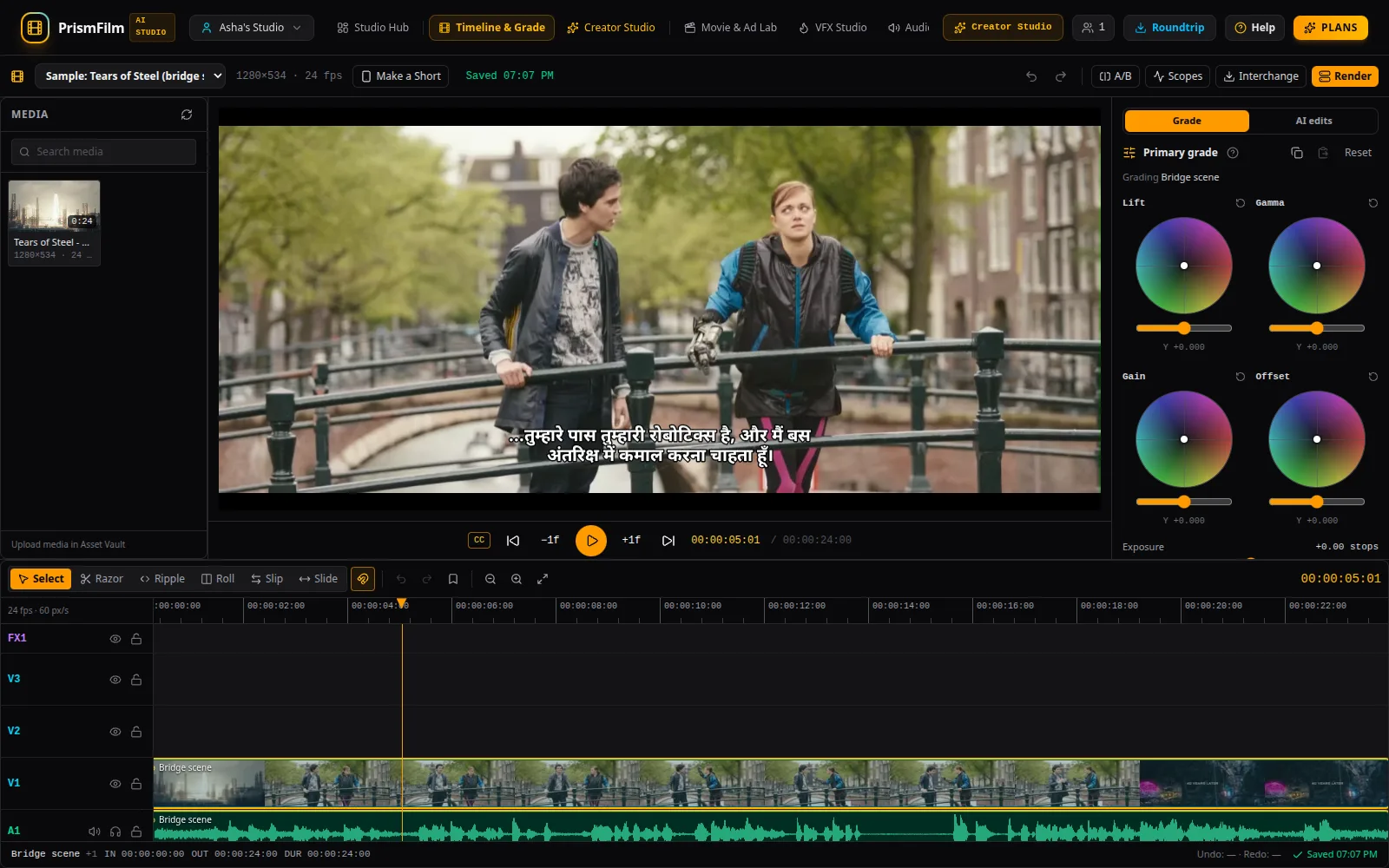
Create or open a project
- Open Timeline & Grade. With no project open you see Create your first project or Open a project.
- Type a Project title, pick the frame rate and the resolution (1920×1080, 3840×2160, 1280×720, 1080×1920 vertical, 1080×1080 square or 4096×2160), and choose Create project.
- Switch projects later with the Project picker at the top left, which also has + New project….
Put clips on the timeline
- The Media bin lists ready video and audio from the Asset Vault. Use Search media to find a file.
- Drag a file onto a track: video on V1–V3, audio on A1–A4. A video with sound puts linked picture and sound on both.
- Hold Shift while dropping to insert the clip and push later clips along.
The FX track holds titles and adjustment layers made in VFX Studio.
Play and navigate
- Space plays and pauses; J / K / L shuttle backwards, stop and forwards.
- ← / → step one frame, with Shift one second. Home and End jump to the start and end.
- Click the ruler to move the playhead. CC shows or hides captions in the viewer.
The edit tools
| Tool | Key | What it does |
|---|---|---|
| Select | V | Move clips, trim their edges |
| Razor | C | Click to cut a clip (with Shift: all tracks) |
| Ripple | B | Trim an edge and move everything after it |
| Roll | N | Move the edit point between two clips that touch |
| Slip | Y | Change which part of the source plays, keeping the clip in place |
| Slide | U | Move a clip between its neighbours |
- S turns magnetic snapping on or off.
- Delete removes the selected clips and leaves a gap; Shift+Delete removes them and closes the gap (ripple delete).
- Shift- or Ctrl-click adds clips to the selection; Esc clears it.
- Zoom with = and -, fit the whole timeline with Shift+Z, or Ctrl+scroll.
Markers
Press M to add a marker at the playhead. Click a marker to jump to it; Alt+click removes it. Ripple edits carry markers with the content: markers after a cut move with it, and markers inside removed content are removed (the status line names them, and undo brings them back).
Tracks
Each track can be locked. Audio tracks have mute and solo; video tracks can be hidden.
Undo and saving
Ctrl+Z undoes, Ctrl+Shift+Z redoes (Cmd on a Mac). The status at the top shows Saved with the time, Unsaved changes, Saving… or Offline — retrying.
Common problems
- "… is still processing. Wait until ingest finishes." The file isn't ready yet; see the Asset Vault.
- "… has no picture. Drop it on an audio track (A1–A4)." / "… has no audio. Drop it on a video track (V1–V3)." Drop it on the right kind of track.
- "Track … is locked". Unlock the track in its header.
- "No adjacent clip on that side to roll against." Roll needs two clips that touch.
- "Someone else saved this project. Your latest edits are not saved." Another person or tab saved first. Choose Reload latest and redo your change.
- "No clip at playhead" in the viewer: there is nothing under the playhead on a video track.
- The viewer shows only one clip. The viewer previews the top video clip graded; lower tracks and FX are composited in the render.
- Reviewers can open projects but not change them.