Help center / Editing and colour
Colour grading and scopes
Grade a clip with the lift, gamma, gain and offset wheels, exposure, saturation and LUTs, and check it on the scopes.
Select a video clip in Timeline & Grade and the Grade panel on the right grades it. The same maths runs in the viewer and in the render, so what you see is what you export.
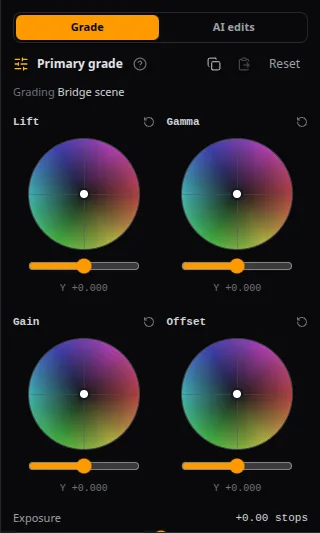
Grade a clip
- Select one video clip on the timeline. The panel shows Grading and the clip's name.
- Adjust Exposure (± 3 stops) first, then the wheels, then Saturation.
- Check the result with A/B at the top: a wipe with the graded picture on the left and the source on the right.
Colour wheels
- Lift moves the shadows, Gamma the midtones, Gain the highlights, Offset everything at once.
- Drag the dot inside a wheel to tint that range toward a colour. The slider under the wheel makes it brighter or darker.
- Hold Shift while dragging for fine control. Double-click a wheel or slider to reset it, or use its reset icon.
The grade is stored as an ASC CDL (slope, offset, power and saturation), which is also what travels to other editors in an EDL.
LUTs and looks
- Pick a look in 3D LUT: Built-in looks or Workspace LUTs.
- Blend it with LUT mix.
- To add your own, choose Import .cube LUT and pick a
.cube3D LUT file (up to 20 MB). It becomes a workspace LUT for everyone in the workspace.
Copy a grade
Use Copy grade on one clip and Paste grade on another. Reset returns the clip to neutral.
Read the scopes
Choose Scopes at the top to open Video Scopes, measured from the graded frame at the playhead:
- Waveform: brightness from left to right across the picture, in IRE. Keep highlights under 100 and shadows above 0.
- RGB Parade: the red, green and blue channels side by side. Matching them in a neutral area removes a colour cast.
- Vectorscope: saturation and hue, with a skin-tone line. Faces sit near that line.
- Histogram: how many pixels sit at each level.
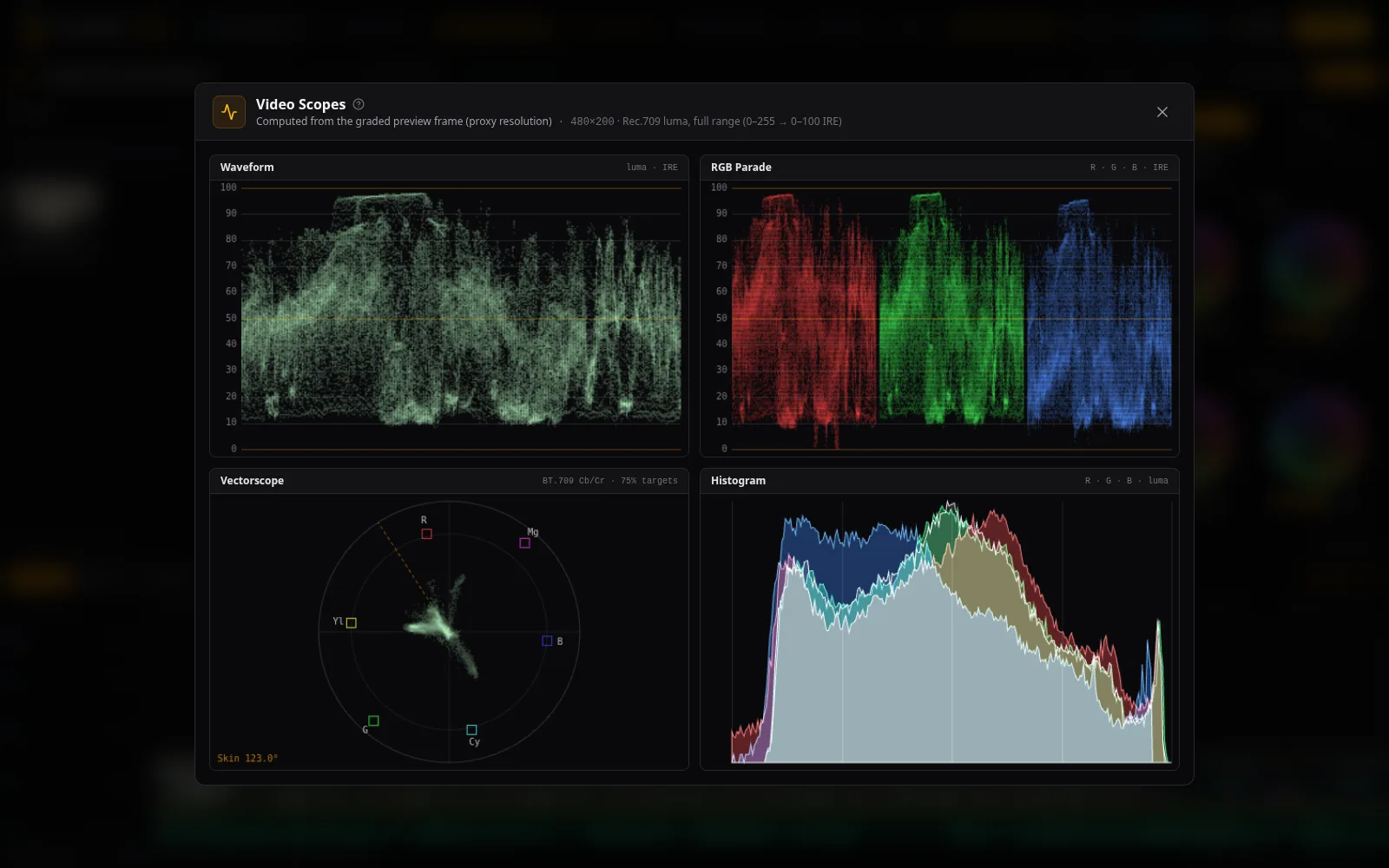
Close the scopes with Esc.
Common problems
- "Select one video clip on the timeline to grade it." Select exactly one video clip.
- "No frame — put a clip under the playhead" in the scopes: move the playhead over a clip.
- "WebGL2 is not available in this browser, so the graded preview cannot be shown." Use a current Chrome, Edge, Firefox or Safari, and make sure hardware acceleration is on.
- "Not a valid 3D LUT…" or "LUT file is larger than 20 MB". Export a 3D
.cubeLUT (33 or 65 points is typical). - Reviewers can see grades but not change them.