Help center / Editing and colour
Music
Add royalty-free music from the built-in CC0 library or your own files, fit it to the video's length on the beat, duck it under a voiceover, and deal with YouTube Content ID claims.
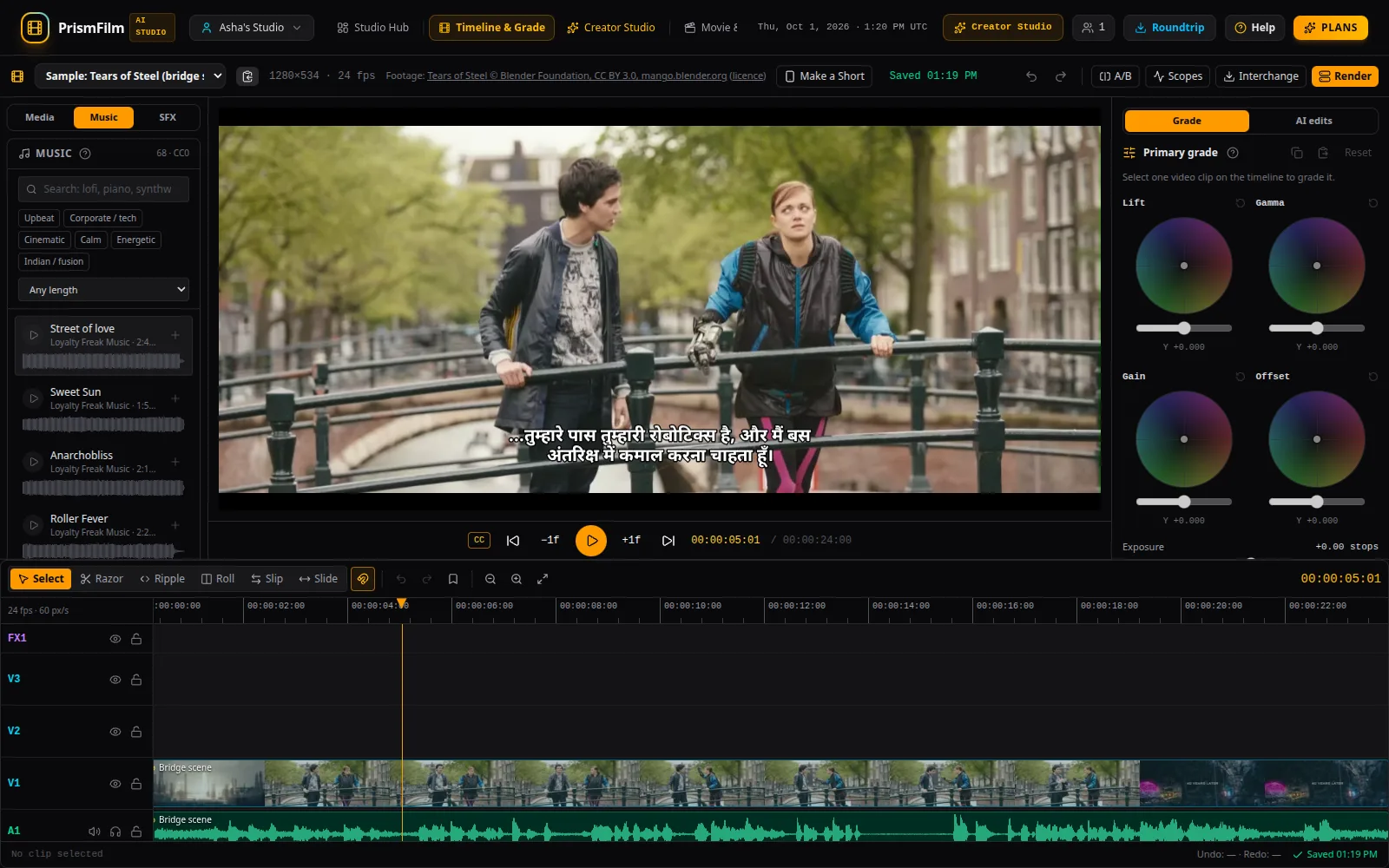
Studio → Music (next to Media and SFX, left of the viewer) is a library of public-domain music for ads and creator videos, plus the music you upload yourself. Search it, preview a track with its waveform, drag it onto the timeline, then fit it to the video's length in one click.
Where the music comes from
Every built-in track was released by its artist under CC0 1.0, a public-domain dedication. You can use the tracks in commercial work, edit them and publish the result without paying or crediting anyone (a credit is still kind). The tracks come from:
- artists on the Free Music Archive who publish under CC0
- CC0 game and media music on OpenGameArt
Before a track was added, its license was checked on the track's own page. The credits page lists every artist and track with a link to that page.
The tracks are grouped by mood: Upbeat, Corporate / tech, Cinematic, Calm, Energetic and Indian / fusion. Indian / fusion is the smallest group, because little Indian-style music is released into the public domain.
Find and preview
- Type in Search (for example lofi, synthwave, piano or an artist's name), pick a mood, or choose a length. Every word must match the title, artist, genre or mood.
- Press ▶ to preview a track. While it plays, click the waveform to jump to another part.
Each row shows the length, the tempo in BPM (when the track has a steady beat) and the mood.
Put music on the timeline
- Drag a track onto the timeline, or press + to add it at the playhead.
- Music goes on the audio track you drop it on if that track has room. Otherwise it goes on a Music track, which is created when needed. Music tracks are ordinary audio tracks: they mute, solo and lock like the others, and their clips go through the mixer, ducking and loudness normalization and render the same way.
- The first time you use a track, it is added to your workspace's media (named Music · …). After that it is reused.
- New music starts at −10 dB with a half-second fade-in. The library is levelled to one loudness, so tracks sit at about the same level.
Select a music clip to change its Volume, Fade in and Fade out at the bottom of the panel. Drag the clip's edges to trim it. Fades sound the same in the preview and the render.
Fit to video length
Select a music clip and press Fit to video length. The music then runs from where the clip starts to the end of the last video clip (or up to the next clip on its track). It is one undo step.
- Longer music is shortened from the middle. Whole bars are taken out, so the beat carries on without a stumble, and the track keeps its own ending. Joins fall on phrase lines (every four bars) when one is close to the length you need, otherwise on a bar line.
- Shorter music is looped. The section between the first phrase and the ending repeats, then the ending plays.
- To keep its real ending, the music may finish up to one bar before the video does.
- A track without a steady beat (ambient pieces, free tempo) is cut with a fade-out, or repeated with fades at each seam. The panel says which method it used.
The joins are short (10 ms) fades between clips that share a link, so the pieces move together. Press Fit to video length again after you change the edit: it replaces the earlier fit.
Fitting uses each track's beat grid: its tempo, where the bars start, and whether the beat stays steady from start to end. Library tracks come with one. For your own uploads, press Find the beat first; until then they are fitted with fades.
Music under a voiceover
Tick Duck music under the voice to turn on the mix's ducking with every Music track ducked under the other audio tracks that have clips (dialogue and voiceover). SFX tracks are left alone. The depth, threshold and timing are the ones in the Mixer (−16 dB by default), where you can preview the result. The render uses exactly the same settings.
Loudness normalization (Mixer → Master) works on the whole mix, music included.
Suggest music
- Choose a mood under Suggest music and press Suggest.
- You get three library tracks that suit the video's length: ideally a little longer than the video, so they shorten on phrase lines and keep their ending. Each comes with a short reason, and you can preview it.
- Press Review on one. It opens as a batch in AI edits (see Reviewing AI edits): the track on a Music track from the start, already fitted to the video. Nothing changes until you accept it.
Your own music
Under Your music, choose an audio file and fill in Where is this track from? (for example the store and licence number, or I composed it). The note is required and is kept with the file, so anyone in the workspace can see where it came from later.
Uploaded music stays in your workspace, like any upload. It is never added to the library or shown to other workspaces. You are responsible for having the rights to use it.
AI-generated music
AI music generation is off. It will only be switched on after a provider's commercial terms for generated music have been reviewed; until then the panel says it is off. The library and your uploads work without it.
YouTube Content ID claims
Content ID is YouTube's system that matches uploads against audio that rights holders have registered. CC0 music is free to use, but anyone can register a recording with Content ID, including people who do not own it. So a public-domain track can occasionally be claimed. We know of no Content ID registration for the library's sources, but we can't guarantee there is none.
A Content ID claim is not a copyright strike. Usually the claimant gets the video's ad revenue, or the video is blocked in some countries, until the claim is resolved.
To dispute a claim on library music:
- In YouTube Studio, open Content, find the video, and click the claim notice in the Restrictions column.
- Click See details, then Select action next to the claimed segment and choose Dispute.
- Choose the reason that the content is in the public domain, or that you have a licence (the wording in YouTube Studio may differ).
- In your explanation, name the track and artist and paste the link to the track's page from the credits page, plus the CC0 deed: https://creativecommons.org/publicdomain/zero/1.0/
- Submit. The claimant has 30 days to respond. If they release the claim, any money held while it was disputed goes to you.
If the claimant upholds a claim you believe is wrong, YouTube may let you appeal. An appeal can lead to a takedown request against your video, so read YouTube's help on disputing Content ID claims first.
For your own uploads, keep the licence you were given: it is your evidence in a dispute.
Common problems
- The play button is greyed out: the track is still being copied to storage after an update. Try again in a minute.
- "There is no picture after this clip to fit the music to": the clip starts after the last video clip. Move it earlier, or add video first.
- The fitted music ends a little before the video: it ends on its own last bar rather than being cut off. Drag the last clip's end to extend it, or add a fade-out instead.